





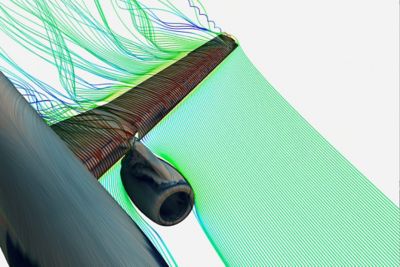

Join Us for Simulation World 2024
The global simulation event designed to inspire, equip, and empower you to innovate.
May 14-16, 2024

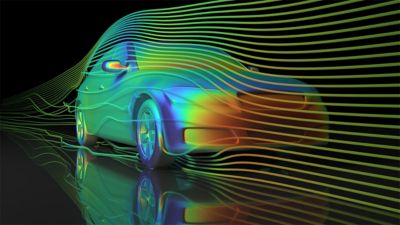
NASCAR Simulates Safety with Next Gen Car
See how simulation enables NASCAR to continuously evolve its Next Gen vehicle designs to mitigate risks on the track.
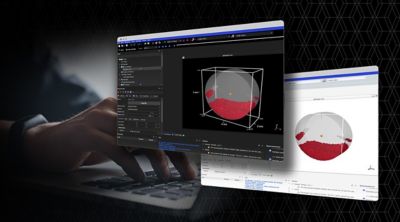
Elevating Interface and Experience: Ansys 2024 R1
New user experience enhances collaborative engineering environments, making powerful multiphysics solutions more accessible while simultaneously amplifying the benefits of AI-driven digital engineering solutions.
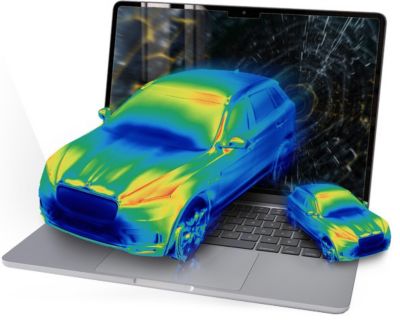
The Intersection of AI and Simulation Technology
Since the mid-20th century, scientists and engineers have tested, validated, and improved their designs with simulation. Simulation software generates synthetic data, and AI combines these learnings into real-time insights to fill in the gaps of what’s possible, making simulation faster.





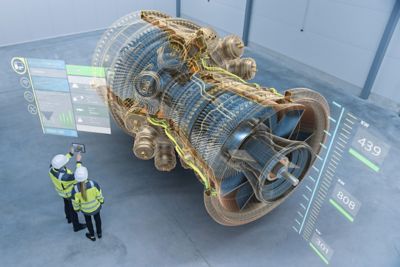


Solving the Unsolvable
Without simulation, there are no autonomous vehicles. No 5G networks. No space exploration. Ansys multiphysics software solutions and digital mission engineering help companies innovate and validate like never before.


The Latest From Ansys

See What Ansys Can Do For You
See What Ansys Can Do For You
Contact Us
Contact us today